GitHub Copilot has introduced a new capability: customizable interfaces called canvases. These aren’t just static tools or templates. They are dynamic, shared surfaces that adapt to how developers work. Instead of navigating fixed menus or typing commands, users can describe a workflow in plain English and let the AI build a live interface around it.
What Happened: A Shift from Chat to Canvas
The traditional model of AI tools—like chat-based assistants—relies on users sending queries and waiting for responses. This creates a gap between intention and action. In contrast, GitHub Copilot’s canvases offer a more tangible, interactive experience. The feature allows users to define a workflow, such as tracking feature progress or managing release notes, and then have the AI generate a real-time interface that both the user and the AI can interact with.
As described in the original post on the GitHub Blog, users can initiate a canvas by typing /create-canvas in an agent session. They then describe the desired workflow in plain English, specifying three key elements: the workflow itself, what actions they want to perform in the interface, and what the AI should be able to do. For example: ‘Create a release notes canvas for tracking new feature work completed across GitHub Copilot app sessions. Include controls for reviewing and organizing entries and allow the agent to add and update them.’ The AI then builds the interface and opens it in a dedicated panel.
Key Facts About Canvases
- Canvases are built from natural language prompts—no design or coding skills required.
- They support a range of interface types: kanban boards, issue triage tools, checklists, dashboards, and spreadsheets.
- Canvases are bidirectional: both users and AI agents can update the interface in real time.
- Once created, canvases are saved as extensions and can be shared across teams or used privately.
- Users can refine a canvas iteratively—adding columns, filters, or integrating data like open pull requests.
These features make canvases a powerful tool for developers who need to manage complex, multi-step workflows without switching between tools or writing configuration files.
How Canvases Work: From Prompt to Interface
The process begins with a user opening an agent session and typing /create-canvas. The AI interprets the user’s description and generates a visual interface tailored to that workflow. This interface appears in a side panel, allowing immediate interaction.
Unlike traditional tools that require users to learn a fixed UI, canvases start with the user’s workflow. This means the interface evolves with the user’s needs. For instance, a developer might begin with a simple checklist for daily tasks and later expand it into a full kanban board with filters for priority and status.
Because the canvas is shared between the user and the AI agent, changes are reflected instantly. When a user clicks a button or moves a card, the agent sees the update immediately. Similarly, if the agent adds a new entry or modifies a field, the change appears in the interface without a separate send or sync step.
GitHub emphasizes that the key to effective canvas creation lies in three simple questions: What information do I want to see? What do I want to change directly? What should the agent be able to update or do? Answering these helps ensure the canvas is both useful and actionable.
Why It Matters: Real-World Impact
For developers, the shift from chat-based interactions to visual, interactive workflows represents a significant improvement in productivity. Instead of typing commands and waiting for responses, users can now steer work in real time, with both human and AI actions visible and synchronized.
Canvases reduce cognitive load by eliminating the need to learn new tool interfaces. They align with how developers naturally organize their work—through lists, boards, and forms—making AI tools more intuitive and accessible.
Moreover, this approach supports collaboration. Teams can share custom canvases to standardize workflows, such as issue triage or sprint planning. A shared canvas becomes a living document that evolves with project needs.
For broader AI development, this reflects a move beyond chat interfaces toward more tangible, interactive experiences. As noted in Why Chat Is the Wrong UI for AI Development Tools, developers often need more than text-based responses—they need tools that allow them to visualize, manipulate, and manage data directly.
Limitations and Open Questions
While canvases are a significant step forward, they are not without limitations. The feature currently relies on the clarity and specificity of user prompts. Ambiguous or overly broad descriptions may result in suboptimal interfaces.
Additionally, the AI’s ability to generate accurate, context-aware interfaces is still evolving. There is no guarantee that every workflow can be successfully mapped to a visual interface. For example, highly complex or abstract workflows may require more guidance or manual intervention.
Another open question is scalability. How well will canvases perform in large, distributed teams with diverse workflows? And how will they integrate with existing project management tools like Jira or Trello?
GitHub has also noted that while the feature is accessible to beginners, it still requires a basic understanding of workflow design. Users may need time to develop a sense of what kinds of interfaces are most effective for their work.
What to Watch Next
Looking ahead, developers should watch for:
- More pre-built canvas templates through Awesome Copilot, which offers a growing library of ready-made tools for release notes, issue triage, and more.
- Integration with other GitHub tools, such as pull request reviews and code analysis, to create end-to-end workflow pipelines.
- Expansions of canvas capabilities to support real-time collaboration, versioning, and data syncing with external systems.
For a deeper dive into how GitHub Copilot handles large code changes, see How GitHub Copilot Handles Million-Line Pull Requests. This illustrates how AI tools are evolving to manage complex technical tasks with precision and scale.
Canvases represent a shift in how AI tools interact with users—moving from passive chat to active, shared collaboration. While not a complete solution, they offer a practical, no-code path to building custom workflows that reflect real-world development needs.
Sources & further reading
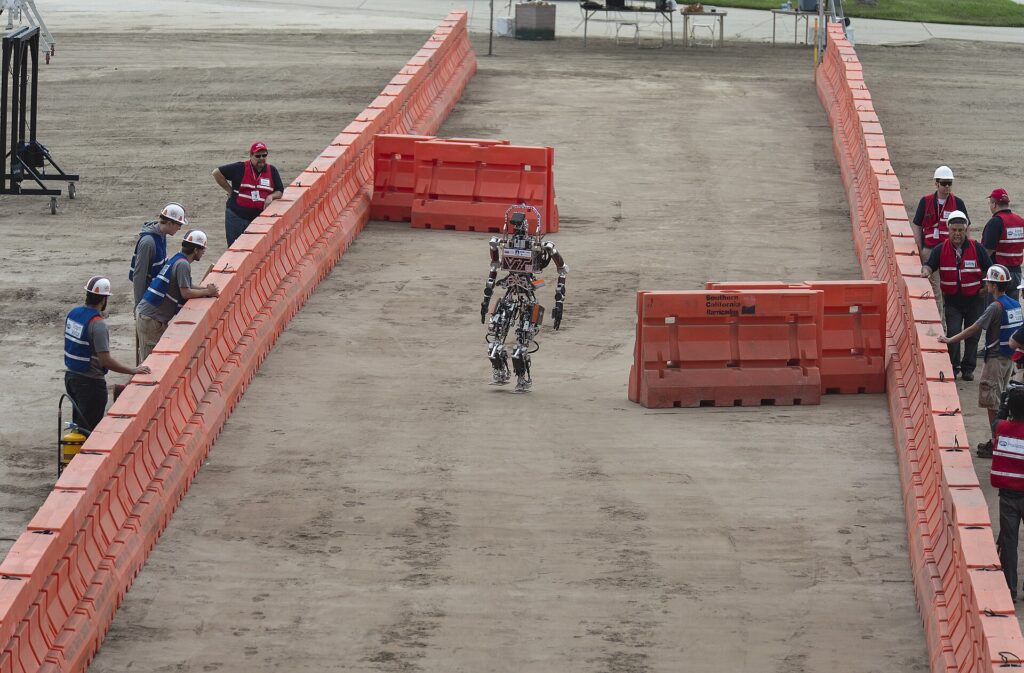
Featured image: 150606-N-PO203-090 POMONA, California (June 6, 2015) ESCHER, short for Electric Series Compliant Humanoid for Emergency Response, makes its way down the track during day two of the Defense Advanced Research Projects Agency Robotics Challenge (DRC) in Pomona, California. Designed, fabricated and assembled by engineering students at Virginia Tech, ESCHER leverages software and design learnings from another project underway at the lab, the Office of Naval Research-sponsored Shipboard Autonomous Firefighting Robot, or SAFFIR. (U.S. Navy photo by John F. Williams/Released) by Master Chief Petty Officer John Williams, Public domain, via Wikimedia Commons. Image source